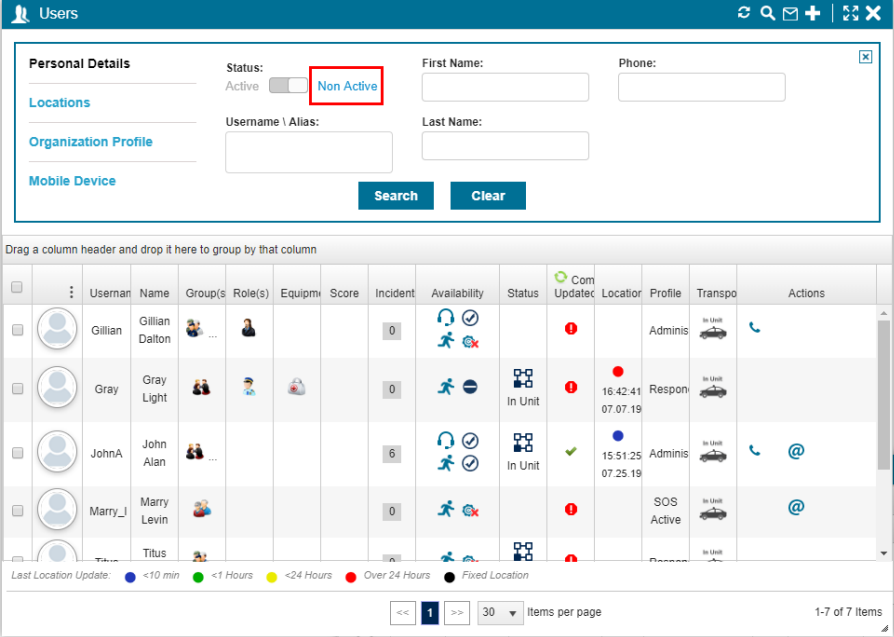
In order to maintain integrity of historical data, you cannot entirely delete users from the system, but you can disable users and they will not be available on the operational panels. Any user that has been disabled can be enabled at a later time.
Disabling a User
You can disable a user from User Management Panel and from the User Panel. Both are described below.
To disable a user from the User Management Panel
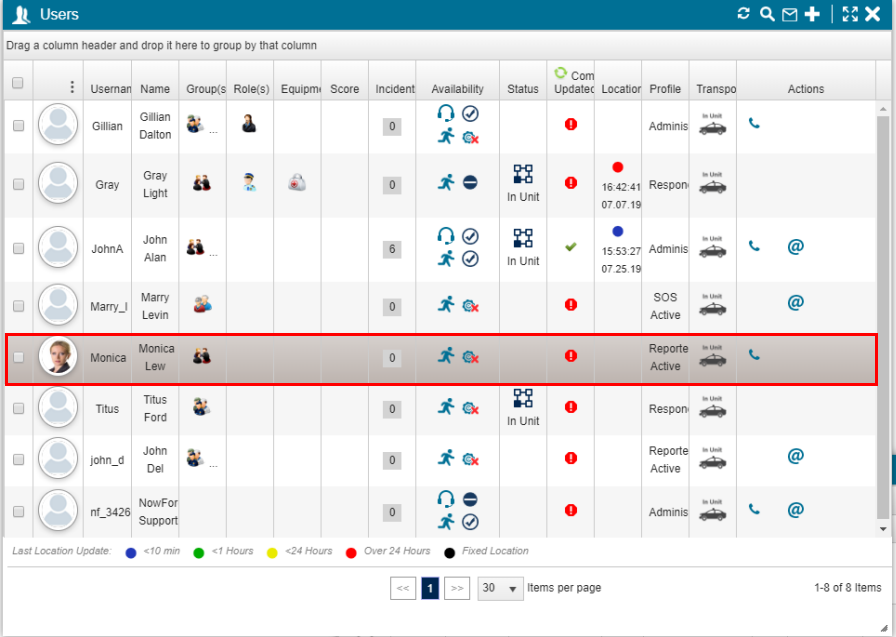
- From the Users panel, hover your cursor over the image of the user you want to disable.
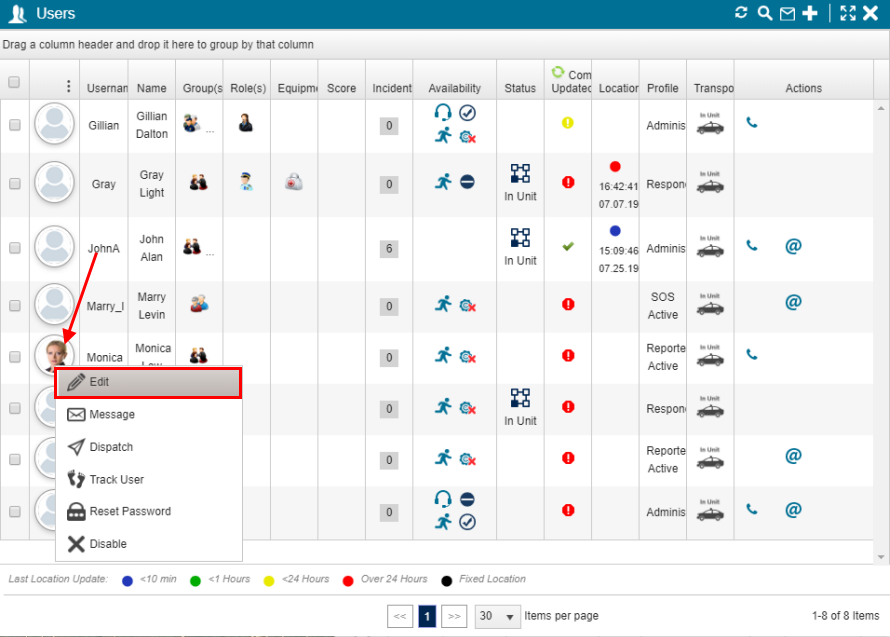
- Click Edit. The User Management panel opens.
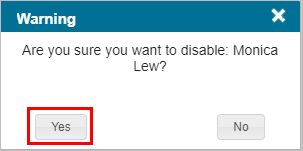
- Click Yes to confirm that you want to disable the user.
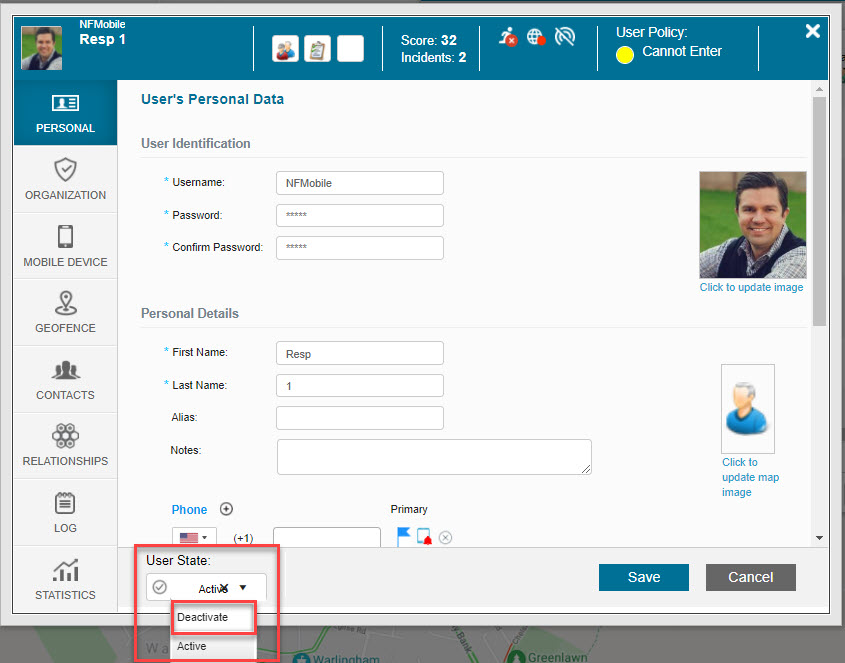
From the Status dropdown list, select Deactivate.
A Warning message appears asking you to confirm that you want to disable the selected user.
A message appears confirming that the user has been disabled.
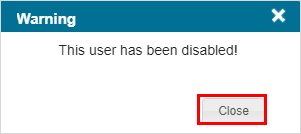
Click Close. The user is removed from the Users panel.
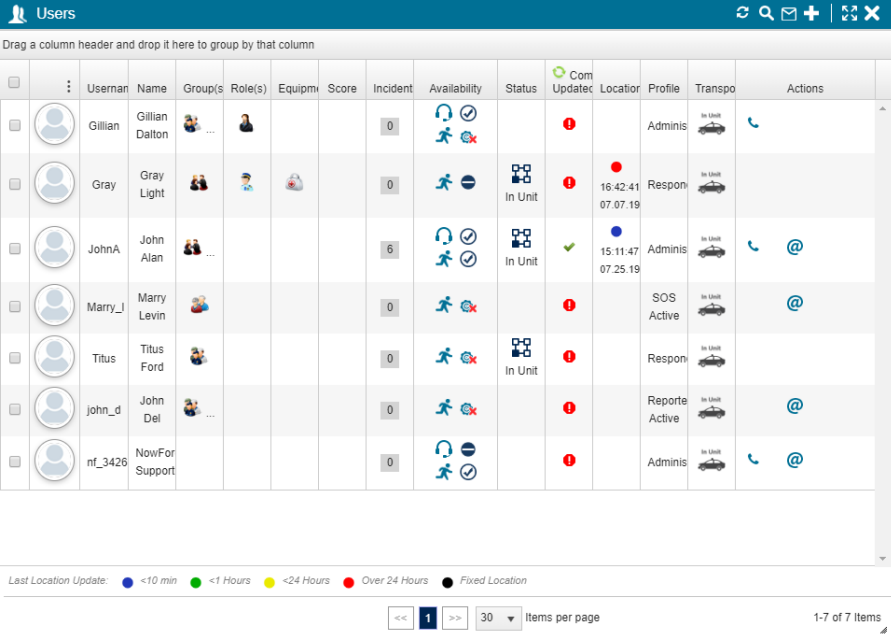
To disable a user from the user right-click menu on the Users panel
- From the Users panel, hover your cursor over the image of the user you want to disable.
- Click Disable.
-
Click Yes to confirm that you want to disable the user.
A message appears confirming that the user has been disabled.
Click Close. The user is removed from the Users panel.
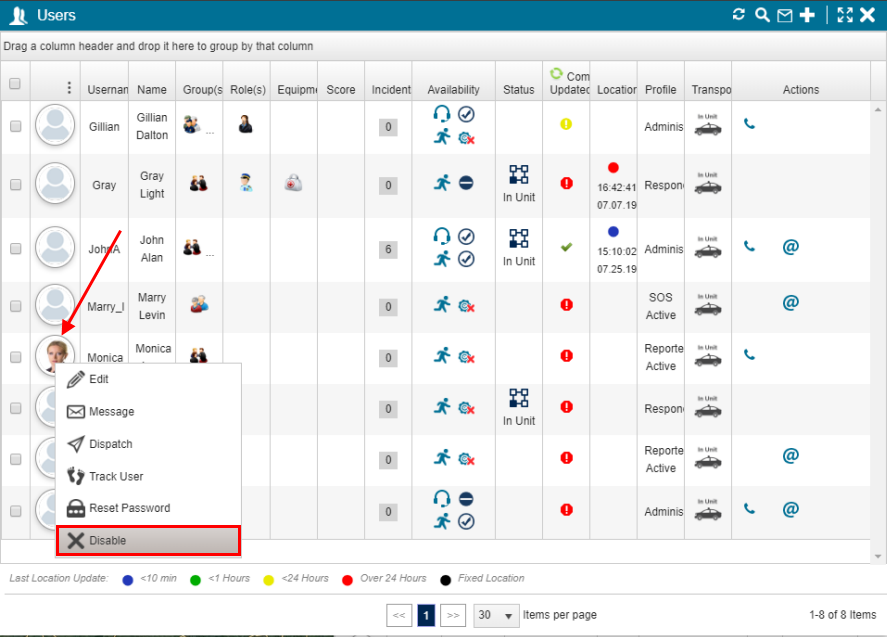
A Warning message appears asking you to confirm if you want to disable the selected user.
Activating a Disabled User
You can reactivate a user that has been disabled and no longer appears in the Users panel.
To reactivate a user
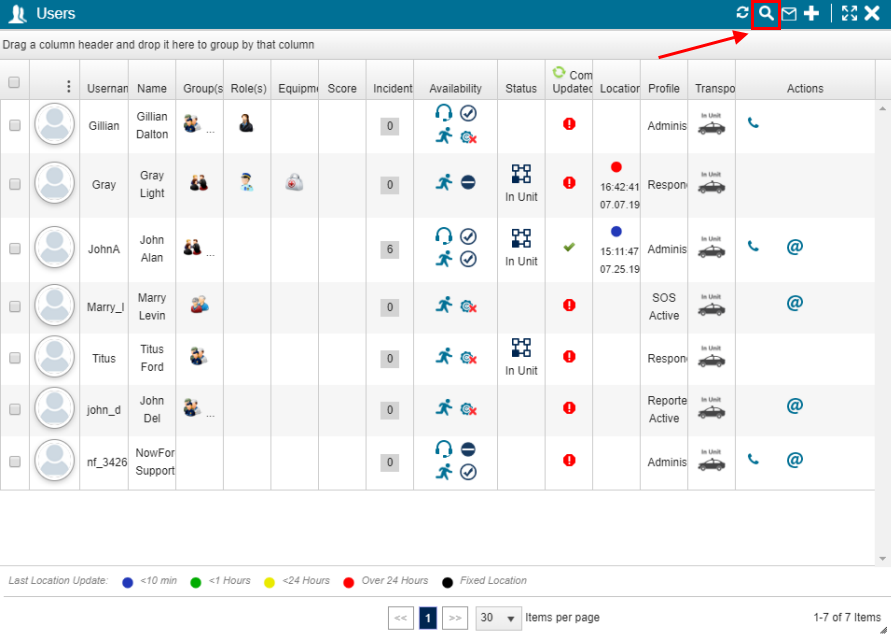
- From the Users panel, click Search.
- In the Status area, select Non-Active.
- Enter search criteria, as required. In the following example. the users First Name has been used as a search criteria.
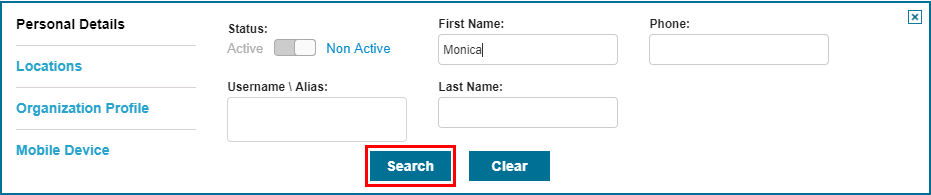
- Click Search. The Users panel shows the search results.
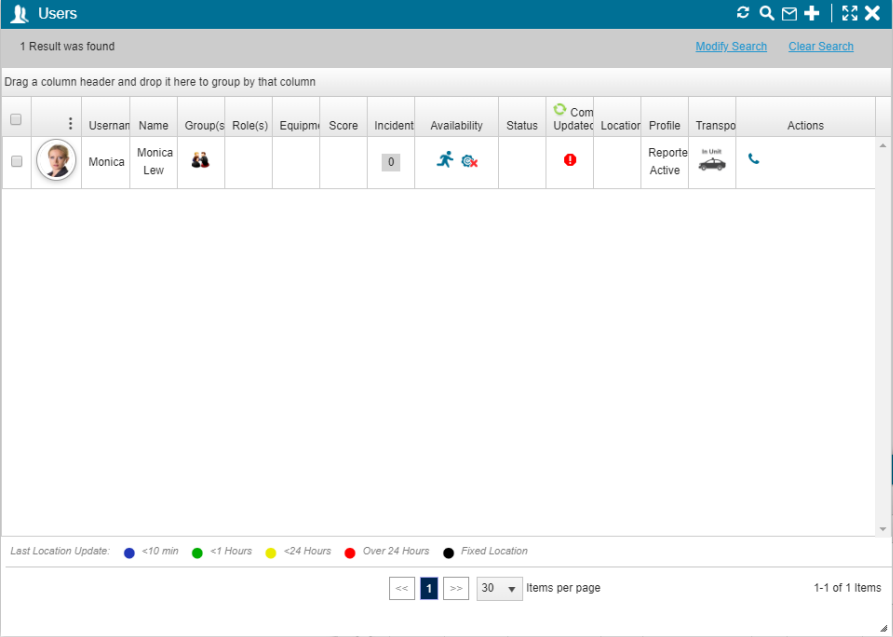
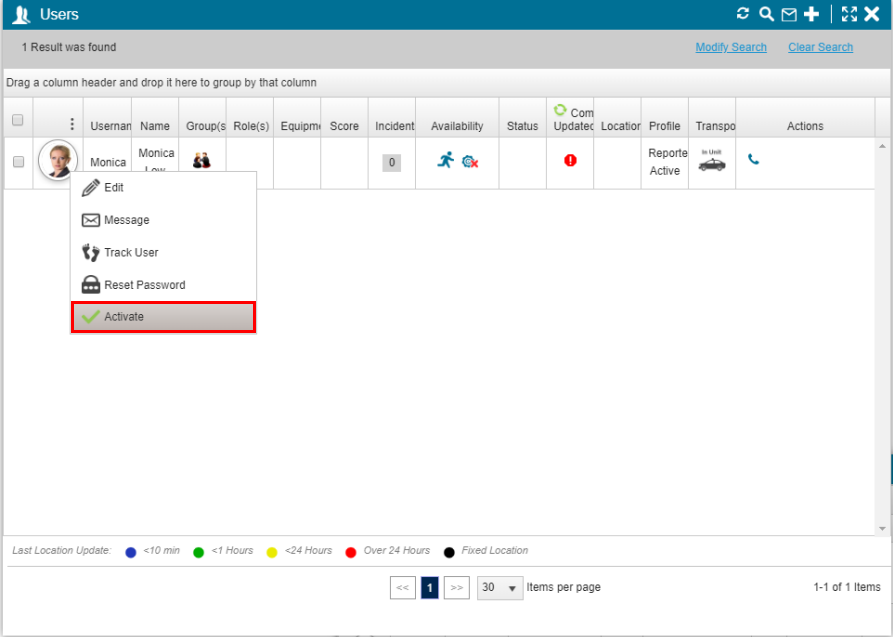
- Right-click on the user, and select Activate.
- A Warning message appears asking you to confirm that you want to activate the user.
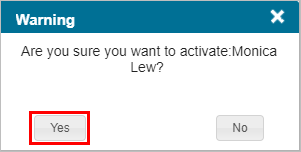
- Click Yes. The user is reactivated and is added to the list of users in the Users panel.
The Search area opens in the Users panel.